
Steven Frank: Programming for Mere Mortals
 Phil Nelson
 Part 1 in a series, available for $2.99 on the Kindle.
Steven is the co-founder of Panic, the legendary Mac development house that brought you Transmit, Coda, and Unison. You need this book.
Part 1 in a series, available for $2.99 on the Kindle.
Steven is the co-founder of Panic, the legendary Mac development house that brought you Transmit, Coda, and Unison. You need this book.
Hello, gentle reader. Since the publishing of this post, Aspyr has ported Civilization 5 to Mac OS X. That means you can just Buy Sid Meier’s Civilization V for Mac OSX on Amazon
The following how to was written for Intel Macs running Mac OS 10.6. It will probably not work if either of those two prerequisites are not met. The test machine is a 2.4ghz Macbook Pro with a GeForce 8600M GT and 4gb of RAM. Your mileage, as always, may vary.
The advances in virtualization software in the past 5 years have made it possible to enjoy PC-only games on your Mac legally, even new releases, without needing to install Windows. Leading the Windows virtualization push is a project called Wine. Wine is an open source project, and as is so often the case it suffers for lack of a user interface, which can make it a non-starter for those who prefer not to use the command line. But from the wasteland there comes a developer named Mike Kronenberg, who has created a Mac OS X native application called WineBottler.
WineBottler handles the deeply unpleasant process of creating a Windows virtualization space for applications (called a Bottle. Get it?) on your Mac with minimal fuss for the user. Using WineBottler I was able to install Steam, purchase Civilization 5, install the game and play it in about the same amount of time it would’ve taken on a native Windows computer. Here’s how.
Installing WineBottler is as simple as installing any other Mac OS X application. Go to the WineBottler website, and download the Disk Image. Once it’s downloaded, mount the disk image and drag WineBottler to your Applications folder. Once WineBottler has been copied to your Applications folder, double-click the icon to launch it. It’ll look something like this:
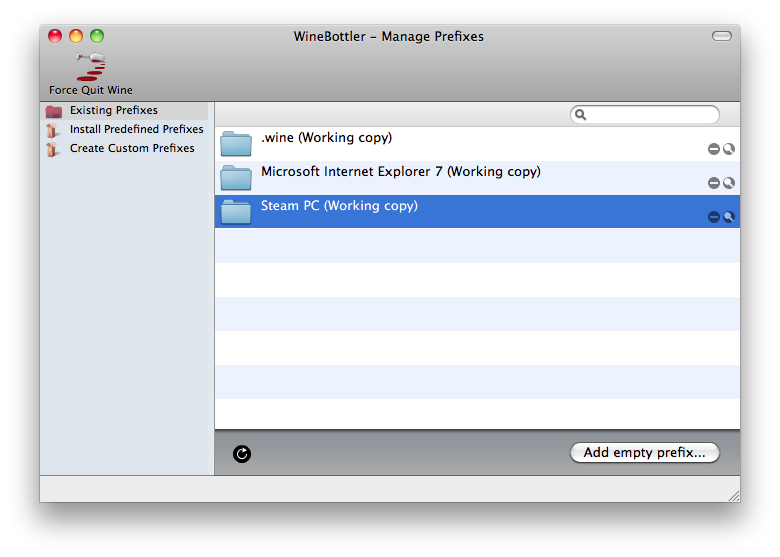
Your window won’t have the extra entries in the right pane that mine does, which are Bottles I’ve made in the past. Don’t panic. To create your “Bottle” for Civilization 5, click the Create Custom Prefixes item in the sidebar on the left. This screen is a little less friendly, but don’t worry, we’ll be out of it soon. For now hide or minimize the WineBottler window, as there’s something we have to do first.
Steam is the distribution platform that Civilization 5 uses. If you want to play Civilization 5 legally, the only way to do it is through Steam. Lucky for us, Steam is free. Go to Steam’s download page, and click the link that reads “also available for Windows” to download the installer. Once it’s downloaded, open up your WineBottler window then click and drag the SteamInstall.msi file onto text field labeled Install File. You don’t have to change anything else on this screen, so click the Install button in the bottom right.
A Save As box will drop down from the WineBottler window. Type in Steam PC for the name, for the Where field select your Applications folder then click Save. WineBottler will start installing Steam. Soon you’ll see the Steam installation window, and if you’ve ever used a PC before then you’ll know what to do. If not, it is simple: Just keep clicking Next in the bottom right of the screen, and eventually click Finish. The WineBottler window and progress bar will stay on screen while Steam installs and runs for the first time, so don’t freak out if it won’t leave.
Once Steam updates (it does so automatically on it’s first launch), go ahead and close the Steam login window. This will let WineBottler know that Steam installed correctly and we don’t need to see WineBottler’s window anymore. WineBottler will prompt you as to which Executable you’d like to run when your launch your Steam PC application. From the menu select steam.exe and click OK.
Now that we’re all done with WineBottler, just go to your Applications folder and double-click the icon labeled Steam PC. You can log in to Steam or create a Steam account form there, and buy Civ 5 or download the Demo just like any other user. Once the game is downloaded it will take awhile to install, primarily the portion where the installer is fetching DirectX. This can take up to 10 minutes, and you might worry that your app has frozen. It hasn’t.
When it comes time to launch Civ 5, select the DirectX 9 option. When the game launches the window will be complete white for a minute or two due to some weirdness with the introduction video. This is totally normal, so don’t panic. After about one minute of the white screen you’ll see the game’s welcome screen and be well on your way to getting your ass handed to you by Montezuma.
If you’re a user of Netflix’s Watch Instantly service you’ve no doubt come upon at least a couple videos that are too quiet to hear without straining, even with your speakers cranked. Mac users: Fear not. The audio-twisting protozoans at Rogue Amoeba have an app called Audio Hijack Pro, the Swiss-army knife of Mac system audio. In addition to letting you record audio from any Mac OS X application (while it is running), it also allows you to apply various effects to the live audio stream. Obviously, in order to use Audio Hijack, you have to download it. Do so.
Audio Hijack has a lot of settings and switch, and it’s user interface may seem a little abstract to the first-time user. What we’re going to do only takes three clicks, though. First, select Safari from the pane on the left side of the screen. Then click “Hijack” in the top left of the window. Audio Hijack may ask you to restart Safari. Next click the Effects tab in the right panel. Your screen will look like this:

The one we’re interested in is turning up the Gain, which will actually pump the Audio coming from Safari up over the “100%” system limit. For now, though, you have to load up your movie on Netflix.
I’ll assume you now how to do this, otherwise you wouldn’t even know if you had a problem with quiet audio. While the movie is playing, switch back to Audio Hijack. This was we can tweak the audio in real time, to get the right volume.
Click the slider on the Gain control in the top left of the Effects window shown in the picture above. Drag it to the right to pump up the volume, up to a maximum of 238%. That should be plenty for any quiet Netflix movie.
Due to the general awesomeness of Audio Hijack, this trick works for ANY application in OS X.
My friend Eliza Gauger linked to this with the text “how to draw EVERYTHING,” and that’s all I need to know.
If you, like me, have tried to install a Safari 5 extension such as Coda Notes, and were met with the following dialog:
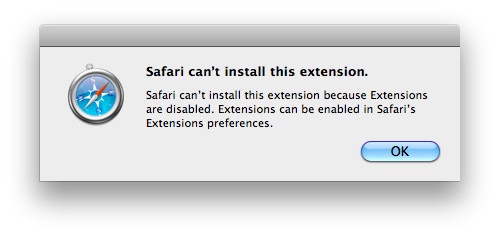
and then spent 5 minutes looking through Safari’s Preferences window to no avail, this is how you enable Extensions on Safari 5:
Viola.
Excellent work from Web Designer Wall. I’ve been using a similar approach on a client site lately, but this one has a few tricks I hadn’t considered.
Since the writing of this post, 1Password has added built-in Dropbox syncing as a feature. As such, the following information is no longer useful and is left intact for historical purposes.
The following post was inspired by the recent postings of Merlin Mann and John Gruber RE: Why you need to be backing up your stuff as often as possible. If you haven’t, you really should give ’em a read.
If you’re as avid a user of the excellent password/login-storing app 1Password as I am, you probably spend a decent amount of time trying not to think about what might happen to you if the application or it’s database were to suddenly go bad.
Ah, you’re probably thinking about it now, huh? Sorry about that. Like the game, important data loss is not something you want occupying your brainspace, and yet there it is. Waiting. I come here not to terrifying you, though I may do that on purpose later if there’s time, but to help you out. You might not know it, but 1Password provides a daily keychain backup function from within the 1Password itself, and when melded to the also-excellent Dropbox online backup and file sharing system, it can be made to automatically backup your 1Password database offsite, for free. Here’s how.
Prerequesite Um, I am assuming you use Mac OS X and 1Password already. If not, you can pretend none of this ever happened. I won’t hold it against you. Much.
Download and signup for Dropbox. Install that shit.
Navigate to Your Home Folder → Dropbox and create a folder called 1Password.

Open 1Password, and click Preferences in the application menu.
Click the Backup tab in the preferences window, and then the folder-selection box under Backup Folder.
Select the 1Password folder you created in step 2. Click the poorly-named “Open” button in the bottom right of the window, or just hit return. Either of these will save you selection.

Click Backup Now to make sure it works. Wait a minute. If it works, 1Password will open a Finder window with your newly backed-up files.
Close 1Password.
Sleep the sleep of the just.
You’re welcome. Comments can be sent to comments at the domain this post is on, and cash gifts can be sent to me right here.
The Old Hotty is a combination of a Hot Toddy and the oldest cocktail, The Old Fashioned. It’s great for colds and those of us who are besieged by problems all day long and who seek to conceal our alcoholism by giving it cute names and cloaking the booze in socially acceptable manner (in this case tea).
Cold or Flu remedy, “hair of the dog” hangover cure. Secret drinking.
Get your coffee mug, pour/squirt just enough honey in it to coat the bottom of the mug. Add juice from a lemon quarter, or a couple squirts from that fake plastic lemon thing or whatever it is you people have, I honestly can’t keep up with all these different kind of lemon juice delivery systems so get off my back. I’m trying to help you here. Now add a dash of the Angostura Bitters, and a shot of your liquor. Throw in your tea bag, and fill the rest of the mug with boiling water. Steep the tea as you normally would. Taste the most delicious thing you’ve had all day. You’re welcome.
Since I introduced the ability to us a different domain for your shortened URLs in la petite url 1.5, I’ve had several email inquiries about how to set it up. With that in mind, I’ve put together the following tutorial, which I hope will help those of you who need a push in the right direction.
The first step we’ll be taking to set up a domain name for your la petite url links is the most important: Registering a domain name to use. It can be anything you like, but I’d personally follow these guidelines that I just made up:
The above are not hard rules, they’re just suggestions. Do whatever you feel comfortable with.
If you manually control your web hosting like some kind of nerd, you can simply set the new domain name (in my case http://exfu.ws) as an alias for your main domain name (in my case http://extrafuture.com, ‘natch). If someone else is in charge of your hosting, this is exactly what you need to tell them:
Dear {Support Team For My Web Host},
I have purchased the domain name {your short URL domain name}, and would like it to be configured as an alias for my other domain {your main domain name}. In short, requests to {your short URL domain name} should be treated the same as requests to {your main domain name}.
Thank you,
{Your Name}
Maybe you should send them a present, too. At any rate, be kind to your support minions, for one day your life may depend on them. They will probably tell you that you need to configure the DNS of your new domain to point to their servers. Here’s a tutorial on how to do that if you registered with GoDaddy, which I had nothing to do with.
If you know how to do this in the various Control Panel softwares that are out there, let me know. I have no idea, because I don’t use ’em.
This one is easy as pie: Log in to your WordPress site, then go to Plugins, look for “la petite url”, then click “Settings” under it’s name. In the la petite url settings page, look under “Domain settings.” Click the “Custom domain” circle, and next to that enter in your new domain name, minus the http://. For me this would be “exfu.ws”. Once you’ve done that, click “Save Changes”, and wait for the changes to be applied. It’s only like a second. Don’t be so impatient. Ah, there it is.
You should be all set, now. If you have problems, concerns, or comments, address them to one of the contact methods listed at the top of this site.
If you want to try out the Nintendo Wii Homebrew Channel, you’ll need to do the Twilight Hack. To do that, you need a Fat-16 formatted SD card. Here’s the command to format the card on Mac OS X (1.5 and 10.6):
diskutil partitionDisk /Volumes/WII 1 MBRFormat "MS-DOS FAT16" "WII" 1000M
Where WII is the name of the drive. The 1000M at the end is how big you want the partition to be, but if the card only has one partition, it will use the whole card, anyway.
This post has been removed for being out of date and out of the scope of information this blog now seeks to provide. If you got here by way of a search engine or link, my apologies.
Update: This is confirmed as working on 10.5 (Leopard) & 10.6 (Snow Leopard).
The average Mac user probably doesn’t mess much with the powerful (but almost entirely un-friendly) Unix underpinnings of OS X, nor do they generally need to. Sometimes, though, the tools provided in the shell are so useful, that it’s worth taking the plunge. Keeping a good backup of your iTunes music folder is, in my opinion, one of these times. To do it, we’re going to use one single line of code, and a unix command-line tool that is built-in to OS X: rsync.
This tutorial makes a couple of assumptions. Firstly, this might work on versions of OS X before 10.4 Tiger. I haven’t tested it, so I really don’t know. So we’re going to assume you’re using 10.4 or newer. Secondly, I’m going to pretend that you’ve kept iTunes at it’s default setting, and it is keeping all of your music files where it usually does (in /Users/yourusername/Music/iTunes Music). Third, I’m going to proceed as if you want to back up your music from one drive to a second drive. It doesn’t matter if it’s external or internal, beefy firewire enclosure or USB thumbstick. So long as it has enough space. For simplicity sake, I’m going to call them Main Drive and Backup Drive. Let’s go.
The first thing we need to do is make a directory on your Backup Drive to keep your backed-up music in. Open the Finder, and click on your backup drive in the sources list, on the left. The sources list looks something like this:

Click on whichever drive you want to use as a backup, and create a new folder there (command+shift+n, or click File and New Folder in the Finder menu). Call it “Music Backup”.
Now we’re going to use the Terminal. Open the Finder, and navigate to Applications -> Utilities and then double-click the Terminal application. It’ll open up and give you a nice blank screen. I’m going to show you the command we’ll be using, and then I’m going to explain it. It won’t take long. Here’s the command:
rsync -rvv /Users/yourusername/Music/iTunes /Volumes/Backup\ Drive/Music/
We’re calling the command rsync, here, a very quick and powerful synchronization tool. The -rvv tells rsync to recursively go through directories, and be very verbose. Very verbose means it’s going to tells us what it’s doing for every single file it goes through, so we can make sure it’s running smoothly this first time. The next time you run this, you can safely omit the vv part without worry.
Here’s how we build the command: In your terminal, type in rsync -rvv. The space after -rvv is important. Now, open up your Finder window, and click on the Music icon in the lower left. This will bring you to your music folder. There should be a folder here called iTunes. Click on the iTunes folder, and drag it on top of your terminal window, and release. OS X is so clever that it automatically copies the directory’s path into the terminal window for you. In your terminal window, put a space after the directory name that’s just been added, then, using the Finder again, navigate to the Music Backup folder we made in step one, and click and drag it onto the terminal window in the same way. It should, again, look something like this:
rsync -rvv /Users/yourusername/Music/iTunes /Volumes/Backup\ Drive/Music/
Take a second look to make sure your terminal looks like that, and then hit he return key. If it works, you’ll see rsync dumping it’s output onto the screen very quickly, and you probably won’t be able to read it. If you’ve got a lot of music, this could take many minutes. A beer may be in order. When it’s done, it will say something like this, and stop scrolling:
sent 5743531756 bytes received 11640 bytes 15976476.76 bytes/sec
total size is 61611466477 speedup is 10.73
What the actual numbers say isn’t important for our purposes. That just means it’s done. To make sure everything worked out okay, you can open your Music Backup folder in the finder. It should have all sorts of stuff in it, now. If all went well, your music is backed up, and you can close the terminal application.
Yep. Simple, eh? The coolest part is, each time you run it from now on, it only copies the files that have been changed, drastically reducing the time it takes to back things up. rsync also has the capability to back things up from remote servers (like a web site, or another computer of yours), which you can learn all about in the documentation. For now, though, you can just enjoy the security of knowing that the odds of losing your entire David Bowie collection are effectively halved.